
Set up your first chart, organize a watchlist, and save a workspace you can find again
Disclosure: I use TradingView Premium and may earn a commission if you purchase a subscription through the affiliate link in this article.
You can learn the main TradingView controls with one chart and a few familiar stocks. Start with the free Basic plan. Your first goal is to find the correct security, choose a daily chart, check the data, and save the setup.
This guide covers operating the platform in its English web interface. If candlesticks and the axes are unfamiliar, begin with our first stock-chart lesson. Once you are comfortable with the controls, the weekly review workflow connects them with investment research.
Feature details checked against TradingView’s official documentation on October 11, 2026. Menus and plan limits can change.
The screenshots below show the actual English web interface captured on October 11, 2026, in a Premium account. They demonstrate the controls, not a hands-on Basic-plan test. Plan availability is based on the linked official comparison.
1 Open Supercharts and find your bearings
Open TradingView Supercharts. Sign in to your own account when you want to keep a watchlist or saved layout. A paid subscription is unnecessary for the basic setup below.
Find four areas before changing anything:
- Top: the symbol, interval, chart style, indicator menu, alerts, and layout controls.
- Left: drawing tools, including lines and annotations.
- Right: watchlists, alerts, and access to other tools.
- Bottom: dates, time-zone controls, and shortcuts that change the visible range.
The official Supercharts tour explains the surrounding menus. For now, work with one chart and leave unfamiliar panels closed.
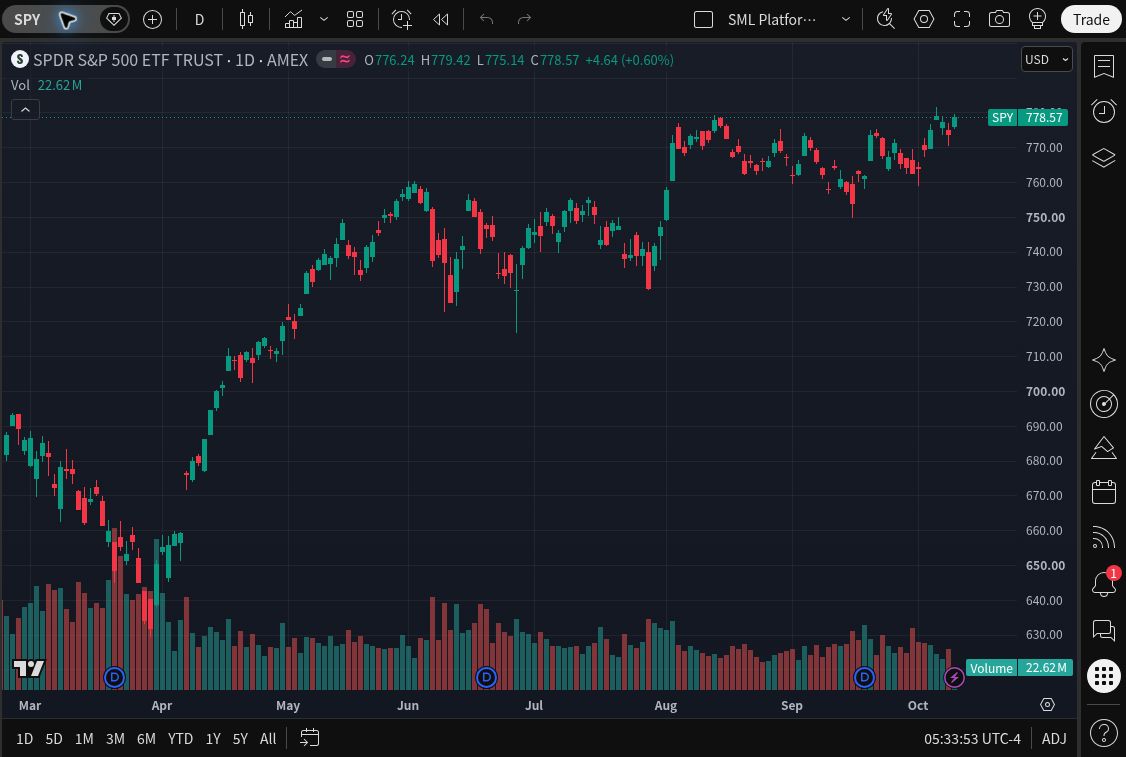
Read the top toolbar from left to right:
- SPY: opens symbol search so you can choose the security and listing.
- D: is the daily candle interval; the chart header confirms it as 1D.
- Candlestick icon: opens the chart-type choices.
- Indicator icon and menu: opens studies such as Volume or RSI.
- Alarm-clock-plus icon: opens Create alert.
- Layout name and arrow: opens the saved-workspace controls near the upper right.
The right-hand icons remain visible, but no private watchlist or alert panel is open in this capture. The cropped-out left drawing tools are part of the normal workspace.
2 Choose the security and listing deliberately
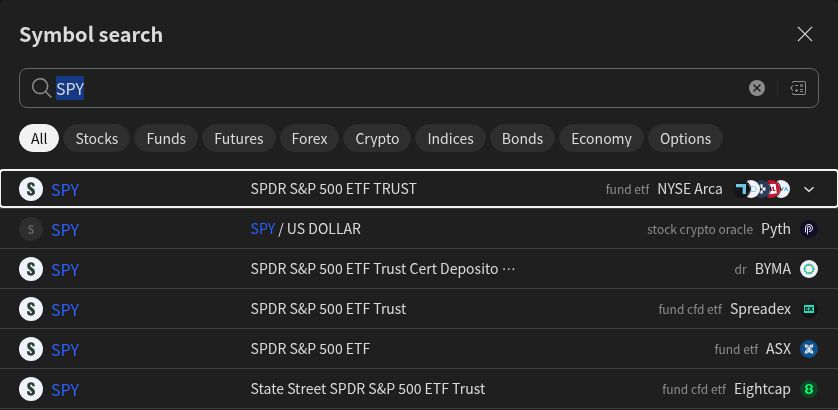
Click the current symbol in the upper toolbar and search for a company or ticker. Before selecting a result, read its description, instrument type, and exchange or data source. The same letters can lead to different instruments, and a company may have several listings.
For practice, choose one familiar ordinary share or ETF. Confirm that the result is the intended security rather than a similarly named index, derivative, or overseas listing. A ticker by itself is insufficient identification. TradingView’s symbol-search guide explains the result fields and filters.
Write a short identification note: company or fund, ticker, exchange, and quoted currency. Recheck it if the price looks very different from another source.
3 Separate the candle interval from the visible date range
In the upper toolbar’s interval menu, choose one day. Select the standard candlestick style from the chart-type menu. Each candle now summarizes one trading day on that series. A weekly interval combines prices into weekly candles instead.
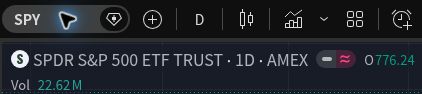
The bottom range shortcuts control how much history appears on screen. They can also change the interval automatically. In particular, the bottom “1D” shortcut is not the same instruction as selecting a daily candle in the top menu. After using a range shortcut, look back at the interval shown above the chart. TradingView documents this distinction in its chart-controls guide.
Move the cursor across the chart to inspect earlier dates. Remember that the newest candle may still be forming. Its shape can change until the relevant period finishes; see the interval explanation.
A useful first exercise is to switch daily → weekly → daily, checking the interval label each time. This teaches the control without requiring a prediction about the stock.

4 Check the feed and the chart settings
Look for the source and any delayed-data notice near the symbol. TradingView’s default U.S. stock feed comes from Cboe and can differ from the primary exchange. Some other feeds are delayed. A paid platform plan does not automatically include every exchange’s real-time data fees. Read the market-data explanation before paying for an upgrade to solve a quote issue.
Capture context: the demonstrated instrument is SPDR S&P 500 ETF Trust (SPY), listed on NYSE Arca and labeled AMEX in the chart. The capture used the Cboe One real-time alternative feed while the market was closed, with 1D candles, USD, and dividend adjustment off. A real-time feed label does not mean the market is currently trading. A separate session override was not verified.
Open chart settings using the gear control. For this exercise, check the session, dividend adjustment where available, displayed currency, and time zone. These choices affect what you are looking at. Record them rather than assuming two charts are identical because their tickers match.
For an uncluttered first view, use the regular price scale and enable automatic scaling if the candles are squeezed out of sight. TradingView’s settings guide covers these controls. You can explore percentage and logarithmic scales once the initial chart is readable.
5 Add one indicator and learn its controls
Open the indicator menu in the upper toolbar. Look in the built-in technical studies and add Volume if it is not already present. The official indicator guide distinguishes built-in tools, financial metrics, and community scripts.
Find the study’s name on the chart and open its settings. Notice that changing a study’s inputs is separate from changing the overall chart appearance. Try hiding it, showing it again, and removing it through its menu. Restore only the study you intend to use.
A crowded chart is harder to learn from. Once you can operate these controls, choose a separate lesson for the meaning of an indicator. For example, the MACD guide explains its lines and histogram. You do not need to add MACD to finish this setup.
6 Add a few symbols to a watchlist
Open Watchlist on the right. Use its add-symbol control to search for the same listing you just checked. Add two or three more familiar securities, verifying each result. Click a row to open that symbol on your chart.
TradingView’s watchlist instructions explain adding symbols, sorting, and organizing a list. Begin with the existing list if your plan permits only one.
Keep a separate sentence about why each company is on your research list. “Read the next earnings release” is more useful than a list of unexplained tickers. A watchlist can include securities you do not own; it should not be mistaken for a record of portfolio holdings.
7 Save the layout and reopen it
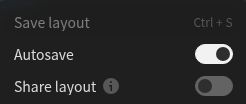
A layout preserves your chart workspace. Use the layout-management menu near the top, give the workspace a clear name such as “Chart practice,” and save it. On Basic, work within the single saved-layout allowance rather than creating several examples.
Check whether Autosave is enabled. Reopen the layout and confirm the symbol, interval, and indicators are as expected. This small check prevents confusion at your next session. The layout guide explains saving and reopening workspaces.
Saving a workspace and sharing it are different actions. Leave sharing off unless you intentionally want another person to see it. When switching symbols, remember that drawings can belong to a particular symbol and chart; a line disappearing on a different ticker does not necessarily mean it was lost.
8 Choose the next tool by the task
- Return to a few known symbols: use a watchlist.
- Receive a reminder when a condition occurs: create an alert and check its notification settings.
- Narrow a larger market by selected fields: use the standard Stock Screener.
- Scan a chosen source with an eligible Pine indicator: investigate Pine Screener after learning the standard tools.
The standard screeners and Pine Screener have different workflows and restrictions. A screen’s matches are candidates for further research. Passing your filters does not establish business quality or an attractive price.
Do you need a paid plan yet
As checked on October 11, 2026, Basic allows one chart per tab, two indicators per chart, one saved layout, and three active price alerts. These limits are enough for this first exercise. The official comparison separates price-alert capacity from technical-alert capacity.
Consider a paid plan only after naming the limit that interrupts a useful task. Examples include needing several charts visible together or more active alerts. Additional capacity does not make an indicator more accurate or replace company research.
Your first session is complete when
- You can identify the exact security, listing, currency, and data status.
- You can select daily candles and distinguish that choice from the visible date range.
- You can add and remove a study without losing the main chart.
- You can switch between a few watchlist symbols and reopen your saved layout.
Then use the weekly review guide to connect the screen with a research question. A clean workspace is useful when it helps you understand what you are checking.
I may earn a commission if you purchase through this link. Review the current features and plan limits before choosing a subscription. Explore TradingView.
Educational information only. This article is not individualized investment advice or a recommendation to buy or sell a security. Investing involves risk, including loss of capital.