
Choose the right condition, understand bar-close timing, and check what happens after an alert fires
Disclosure: I use TradingView Premium and may earn a commission if you purchase a subscription through the affiliate link in this article.
A TradingView alert can remind you to review a price move without watching the chart all day. Start with one price alert, a clear message, and a notification channel you will notice. Then learn how indicator alerts differ before adding more conditions.
An alert is a prompt to investigate. It does not place a trade by itself, guarantee delivery at an exact moment, or establish that a security is worth buying. This guide covers notifications, not automated execution.
Feature details checked against TradingView’s official documentation on October 11, 2026. Interface wording and subscription limits can change.
The screenshots show the actual English web interface captured on October 11, 2026, using a Premium account. They are not a Basic-plan test. No alert was created during capture. The example uses SPDR S&P 500 ETF Trust (SPY), NYSE Arca, shown with the AMEX chart label; it used the Cboe One real-time alternative feed while the market was closed, with 1D candles, USD, and dividend adjustment off. A separate session override was not verified.
1 Choose the correct alert category
A price alert follows the chart symbol’s price. It can notify you when price crosses a chosen level or moves above or below it. Select Price as the primary condition; TradingView’s price-alert guide lists the available operators.
A technical alert uses an indicator, strategy, or drawing. A price crossing a horizontal drawing is therefore a technical alert, even though the drawing looks like a fixed price level. Channel and Moving operators also fall into the technical category. See the technical-alert explanation.
A watchlist alert applies a condition across the symbols in a watchlist. It has a separate allowance. Adding a stock to a watchlist does not create an alert automatically. TradingView describes the three categories in its alert overview.
Decide which question you mean: “Did this price reach my review level?” and “Did this indicator satisfy a rule on the daily chart?” require different settings.
2 Create your first price alert
- Open the intended symbol. Verify the listing, currency, and data feed. Use a security you already follow.
- Open Create alert. Use the upper toolbar or Alert manager on the right. The keyboard shortcut is Alt+A on Windows or Option+A on Mac, according to the setup guide.
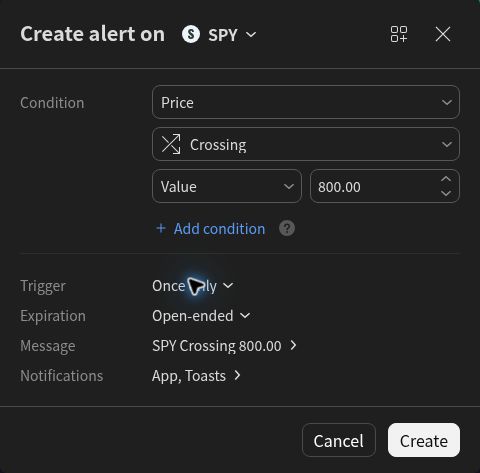
- Select Price and an operator. For a first exercise, choose Crossing and enter your review level. Crossing can respond from either direction; Crossing up and Crossing down restrict the direction.
- Choose the trigger behavior. Select Once only for a single reminder. Check the available options rather than assuming this is a bar-close alert.
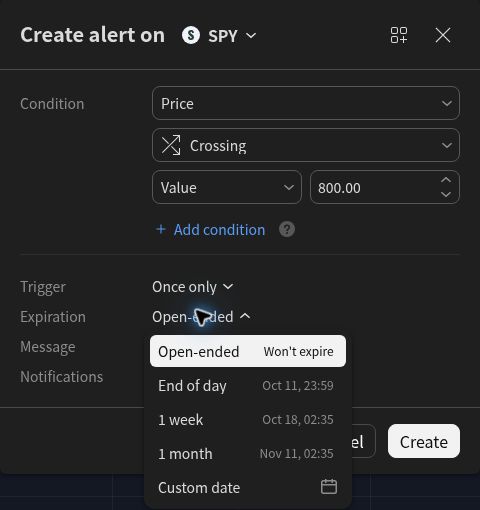
- Set the expiration. Choose a date that fits the reason for the reminder.
- Add a useful name and message. For example: “Review level” and “Check the latest company news and revisit valuation assumptions.”
- Choose notifications and create the alert. Open the Notifications row to select channels in its separate sub-panel, then use Apply to return. When you are ready for a real reminder, create the alert, reopen it in the manager, and verify the saved settings.
The screenshot example selects SPY, Price, Crossing, and a value of 800.00 USD. This is an arbitrary level chosen to demonstrate the controls, not a valuation, forecast, or recommendation to buy or sell SPY. No alert was created. If your actual listing is quoted in another currency, enter the level in that listing’s units.
Greater than and Less than test whether price is beyond a threshold; Crossing describes a transition through a level. Choose the operator that matches your question. The operator reference explains the distinctions.
3 Understand why the bar-close option may be missing
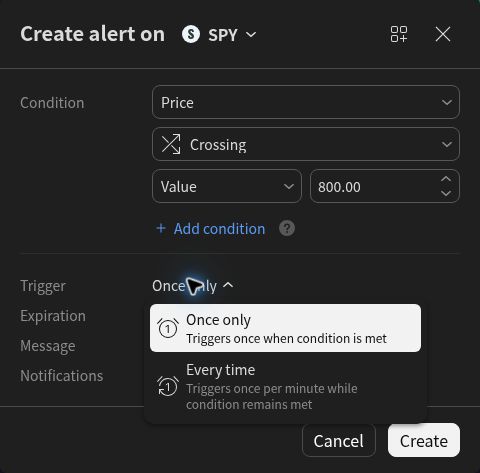
A regular price alert follows current price independently of the chart interval. In the captured Price/Crossing dialog, the trigger menu offers Once only and Every time. Its description of Every time is “Triggers once per minute while condition remains met.” Treat this as the displayed guidance for this setup; do not assume every operator or alert type behaves identically. Switching the visible chart from daily to weekly does not turn this price alert into a weekly-close condition.
Interval-dependent alerts, such as alerts on indicators or drawings, can offer Once per bar and Once per bar close. If you need a price-related condition evaluated at a bar’s close, TradingView documents a horizontal-line alert as an interval-dependent alternative. It uses the technical-alert allowance. Confirm both the interval and operator in the dialog.
For an eligible condition, Once per bar can fire while that candle is still forming, with at most one trigger in that bar. Once per bar close waits for the closing evaluation. The frequency guide explains these choices. “Once only” means one alert trigger before stopping; it does not mean “wait for one completed candle.”
Hypothetically, an indicator may rise above a level halfway through an hour and finish the hour below it. An intrabar alert may have fired even though the final candle no longer shows the condition. Waiting for the close reduces this particular source of mismatch, but it does not correct every repainting or script-design problem. See TradingView’s alert troubleshooting documentation.
Bar-close notifications can also arrive after the nominal closing time while TradingView waits for data or confirms the bar has ended. Do not promise second-perfect delivery. The platform documents these bar-close delays.
4 Try an indicator condition separately
This optional exercise requires technical-alert access. On a daily chart, add the built-in Relative Strength Index and check Length 14 and Source Close. RSI is measured on a 0–100 scale; a value of 50 is not a $50 share price. For interpretation, read our RSI guide and TradingView’s input definitions.
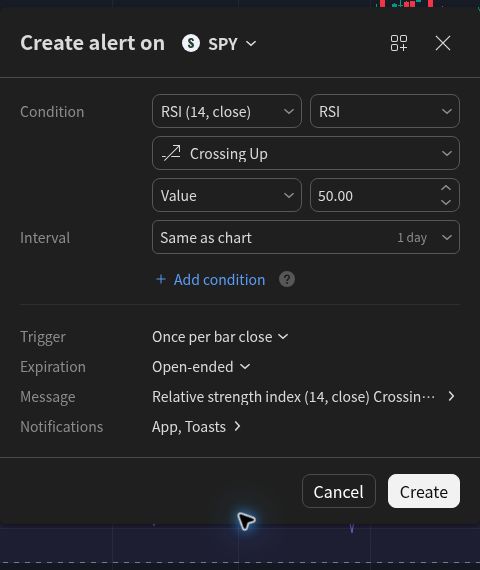
Open Create alert and choose RSI (14, close) as the condition, then select the RSI output. In the example, the operator is Crossing Up and the value is 50. The Interval row says Same as chart and shows 1 day. Select Once per bar close for this eligible condition. Give it a message such as “Daily RSI crossed above 50; review the chart and company context.”
Check that you selected the RSI output. The optional smoothing output, RSI-based MA, is a distinct choice, and another script may have a similar name. The arbitrary RSI value of 50 demonstrates the condition controls; it is not a recommendation or a tested investment strategy. If you use Basic, skip this optional indicator-alert exercise. You can complete the earlier price-alert steps without upgrading.
5 Know what strategy and script alerts actually follow
A Pine strategy can produce events from simulated order fills, calls to its alert function, or both, depending on the selection. A strategy’s order-fill alert refers to TradingView’s broker emulator. It is not evidence that an order executed in your live brokerage account. The official strategy-alert guide explains that notifications concern real-time emulator events, not old orders on historical bars.
Some script alerts control their frequency and message in code, so the standard trigger dropdown may not be available. Read the script’s documentation and the selected event type. Pine code defining an alert event does not create a running alert automatically; the user still creates the alert in the chart interface. See the Pine alert documentation.
6 Select and check a notification channel
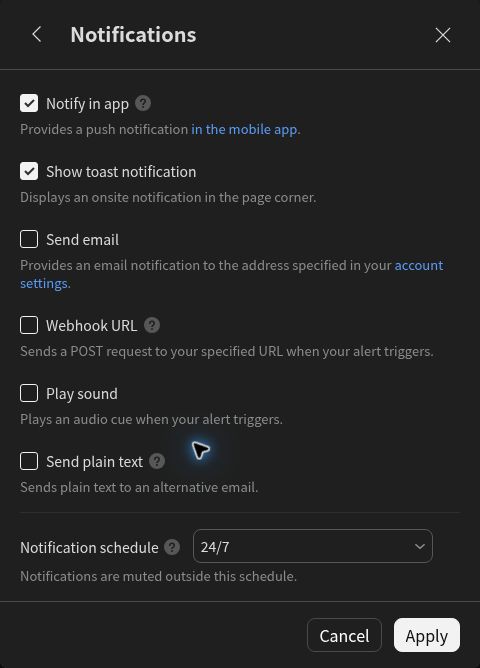
Open the Notifications row in Create alert to reach the separate notification sub-panel. The captured menu contains Notify in app, Show toast notification, Send email, Webhook URL, Play sound, and Send plain text, plus a notification schedule. Notify in app provides a push notification in the mobile app. Show toast notification displays an onsite message in the page corner; it is not the same as an operating-system push notification.
Select the channels you need and check the relevant device settings. Mobile-app permissions can affect app delivery; where browser notifications are used, browser permissions also matter. TradingView’s notification setup instructions explain those permissions. Check the notification schedule too: the panel says notifications are muted outside the selected schedule. Use Apply to return to the alert condition.
Alerts run on TradingView’s servers, so closing the chart does not itself stop their evaluation. That does not guarantee that every device will display every notification.
Webhooks send a message to an external URL. They require two-factor authentication and can fail to reach their destination. The webhook guide explains delivery status and security considerations. Keep passwords and other credentials out of alert messages. A beginner reminder does not need a webhook or a trading bot.
7 Recreate script alerts when their inputs change
When a script alert is created, TradingView saves a copy of the script, inputs, symbol, and timeframe for server-side execution. Editing the indicator on your visible chart does not update that saved copy.
If the intended calculation changes, the official Pine documentation instructs you to delete the old alert and create a new one using the revised setup. Record the new settings and confirm the replacement is active. Apply the same discipline after a strategy change.
This snapshot rule is different from directly editing an alert’s own price level, message, or notification settings in Alert manager. For an ordinary price-level change, edit the alert itself and verify the saved value. Renaming a chart or changing a visible indicator is not a substitute.
8 Review limits and expiration dates
As of October 11, 2026, the official plan comparison lists three active price alerts for Basic and no technical-alert allowance. Essential provides 20 of each, Plus 100 of each, Premium 400 of each, and Ultimate 1,000 of each. These are separate pools, not interchangeable counts. Watchlist alerts are separately limited to two on Premium and 15 on Ultimate.
Basic lists a one-month alert duration; Essential and Plus list two months. Premium and Ultimate offer open-ended alerts, although the option does not apply to watchlist alerts. Check the saved expiration rather than assuming that an upgrade changed an existing alert.
Open-ended also does not mean maintenance-free. TradingView says an alert is automatically deactivated when it was created more than a year ago, has not triggered for over a year, and has not been edited for over a year. See the duration rules and watchlist exception.
Start with your highest-priority reminders. A larger quota is useful only if you have a reason to maintain those additional alerts.
9 Check the manager and log when something seems wrong
TradingView’s Alert manager shows active and stopped alerts, including whether one stopped after its single trigger or because it expired. The log records triggers. Use those two views to distinguish “the condition did not trigger” from “a notification did not reach my device.”
- Wrong or missing event: check the symbol, feed, operator, interval, and selected study output.
- Old settings: compare the alert’s saved setup with the current chart and recreate a script alert if needed.
- Stopped reminder: inspect its status, expiration, and one-time trigger behavior.
- Event in the log but no phone notice: inspect the chosen channel, account, and app permissions.
- Mismatch with a past chart: consider intrabar changes, script behavior, and data revisions.
Bar Replay is not a test of historical notification delivery. Existing server alerts continue to follow real-time data while replay is running, and new server alerts cannot be created during replay. TradingView states these limits in its Bar Replay guide.
After the next genuine trigger, compare the log entry with the saved condition and your notification channel. Then decide whether the reminder led to a useful research action. For a practical use case, return to the weekly review workflow.
I may earn a commission if you purchase through this link. Check the current alert allowances and plan terms before choosing a subscription. Explore TradingView.
Educational information only. This article is not individualized investment advice or a recommendation to buy or sell a security. Investing involves risk, including loss of capital.