
A beginner map of company profiles, financial history, comparison charts, and searchable stock data
Disclosure: I use TradingView Premium and may earn a commission if you purchase a subscription through the affiliate link in this article.
TradingView brings company information and market data into several tools. For a beginner, the useful starting point is a simple question: do you want to learn about one business, compare a few companies, or search a market?
This guide uses “financial-data tools” to describe these features collectively. TradingView names them separately, including Financials, Stock Screener, and Fundamental Graphs. Start with the beginner setup guide if you are still learning the interface.
Feature information checked against official TradingView documentation on October 12, 2026. The screenshot shows the actual English web interface captured that day using a Premium account. Available fields, history, and controls depend on the company, market, and plan; this is not a hands-on Basic-plan test.
Choose the tool for your question
Identify the business with company details
Search for the correct company and confirm its exchange and share class. A company profile gives a short business description and classification. TradingView’s watchlist guide also documents a Symbol details area with company profiles, news, and key statistics. Use this for orientation, then read the company’s own business discussion for the full explanation.
Read reported results in Financials
On a stock’s public symbol page, open Financials, then Statements. Income statements, balance sheets, and cash-flow statements help you examine sales, profitability, resources, obligations, and cash movements. Use the available reporting-period controls and metric search to find a line item. TradingView’s Financials page guide explains these tools. Summary tables do not contain all the accounting notes in a report.
Inspect a trend on a financial chart
In Supercharts, open Indicators, metrics, and strategies, then find the financial or fundamental category. TradingView’s financial-data guide calls this Financials; its current Supercharts tour uses Fundamentals. Add a metric from the income statement, balance sheet, cash flow, or statistics category. Begin with one field, such as revenue, across completed years. The financial-data instructions describe this route. A trend shows what changed; management’s discussion and the notes help explain why.
Compare a few companies in Fundamental Graphs
Fundamental Graphs puts selected companies and metrics into a comparison chart. Start with two similar businesses and the same metric, period, units, and currency. Its official introduction explains symbol selection and scale choices. Check whether you are viewing absolute values, percentages, or an indexed scale: those views answer different questions.
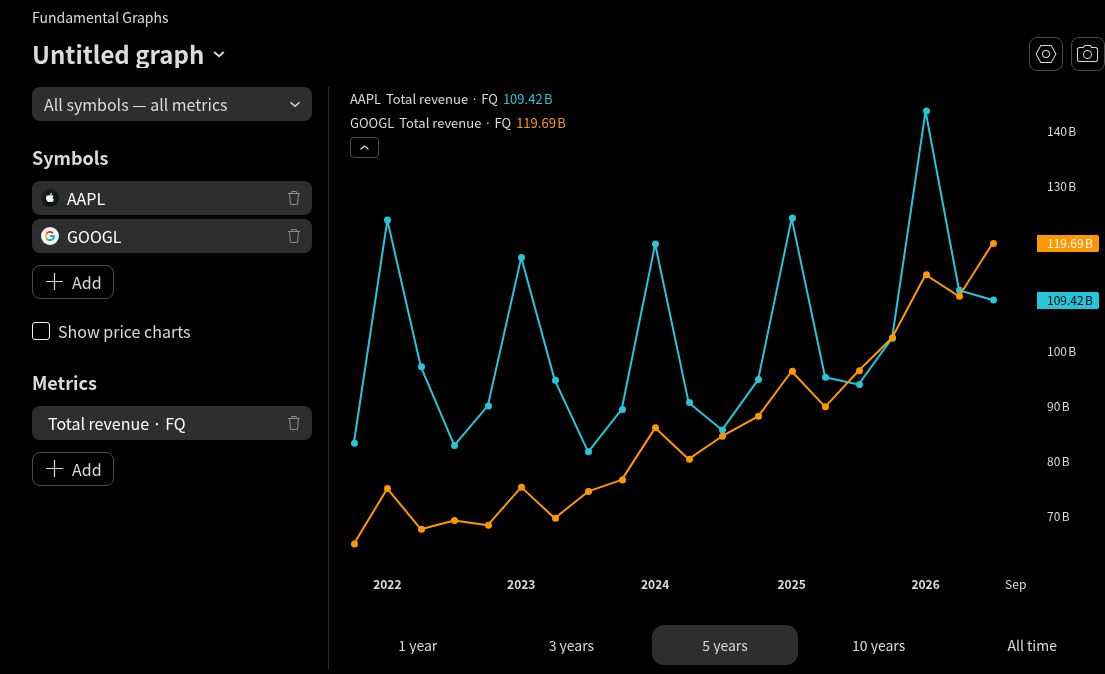
Swipe or scroll horizontally to inspect the controls. Open the full-size screenshot.
Search companies with the Stock Screener
The Stock Screener filters a market and displays matching securities. A filter changes which rows qualify; a column changes the information displayed; sorting changes the row order. Begin with one market and a few fields. The official Screener guide covers these controls. A matching company still needs individual research.
Check the number before using it
- Period and date: annual, quarterly, and trailing-twelve-month figures cover different windows. Read the fiscal date and distinguish reported results from estimates.
- Currency and units: confirm the displayed currency and whether amounts use millions or billions. Screener financial-currency conversion does not convert every price field; check the conversion rules.
- Definition and provider: TradingView documents FactSet financial metrics and standardized data. A ratio can differ from the company’s own presentation. Reconcile important inputs to the report.
- Missing history: an empty field is not zero. Some companies report semiannually, so quarterly fields can be absent. See the reporting-frequency explanation. A plan’s maximum history cannot create missing reports.
Treat export and data reuse as separate questions
TradingView documents Export screen results in the screen menu. Check your current access before relying on it. Exporting a screen does not provide the company’s complete reporting history.
An export option or in-platform Pine financial-data function does not itself grant permission to redistribute data, build a commercial database, or use a general external data API. Review TradingView’s current terms and data-use restrictions for your intended use.
A useful first session
Choose one familiar company, find its annual revenue and operating cash flow, and record the period, currency, units, and source. Write one change to investigate, then check the original report using our 10-K checklist. For the cash-flow calculation itself, read free cash flow explained.
Ready to put these tools together? Follow our step-by-step fundamental-analysis guide for a first company-research session.
Browse all TradingView guides for more practical platform lessons.
Try the tools available to you first, and review the current plan comparison only when a specific limit affects your work.
I may earn a commission if you purchase through the following affiliate link.
Open TradingView for your first financial-data research session
Educational information only. This article is not individualized investment advice or a recommendation to buy or sell any security. Investing involves risk, including loss of capital.