
Find the reporting week, check the time zone, and compare estimates with actual results without confusing an earnings beat with an investment conclusion.
The TradingView Earnings Calendar brings company reporting events, earnings-per-share estimates, and revenue estimates into one view. It is useful for answering a practical question: Which reports should I prepare to read, and what should I check after they arrive?
This guide focuses on operating the calendar. For statement analysis and screening, use our TradingView fundamental-analysis guide. For fitting the task into a broader routine, see the weekly review workflow.
Interface checked October 25, 2026, in the desktop web version. Labels and layout may change. Screenshots demonstrate controls, not current earnings forecasts or investment recommendations.
1. Open the Earnings tab and choose the week
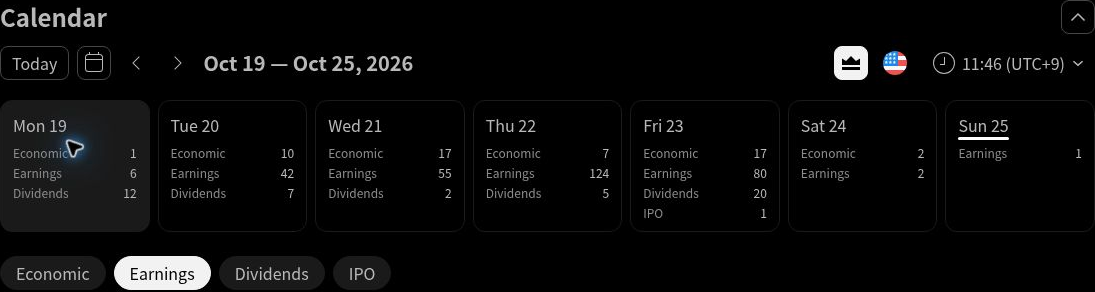
Open the calendar link above. In the interface checked for this guide, the page is titled Calendar, with tabs for Economic, Earnings, Dividends, and IPO. Select Earnings; the economic calendar contains a different set of events.
- Read the week range beside the navigation arrows before interpreting any rows.
- Use the left and right arrows to move to the previous or next week.
- For another period, click the calendar icon, labeled Select week. Choose a date in the week you want. Check that the displayed week range changes as intended.
- Use Today to return to the current reporting week. The day cards above the table help you navigate that week’s events.
For a first practice session, choose one week and one market. A long list of companies is harder to review meaningfully than a few familiar names. Keep the date of the announcement separate from the fiscal period covered by the report.
2. Check the country filter and time zone
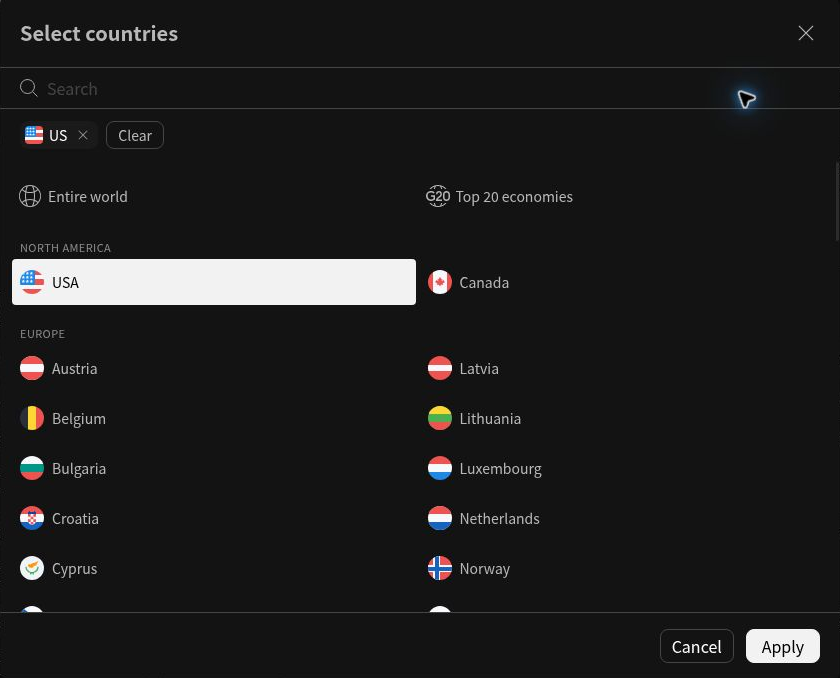
Click the flag-shaped Countries control. The Select countries panel includes a search field, selected-country tags, Clear, and Apply. Choose the country or countries you want, remove unwanted selections, and click Apply. The panel also offers broader selections such as Entire world.
Check the Primary listing filter beside the country control. If an expected security is missing, review this filter as well as the country and week. Do not assume that an empty filtered view proves the company has no forthcoming report.
Next, click the clock and time-zone control. The inspected menu lists cities with UTC offsets. Choose the zone you intend to use and confirm the label afterward. Do not assume the calendar uses your exchange’s time zone, your device’s zone, or the same setting as an open price chart.
Write the zone next to any time you copy. A company announcement may use another zone and fall on a different calendar date after conversion. Check the offset applicable to the event date, especially around daylight-saving changes. Labels such as Before market open and After market close describe a market-session relationship; they are not exact release times.
3. Confirm the date with the company
A date in a data service can be expected rather than company-confirmed. TradingView’s report-date documentation specifically explains that the chart’s Earnings card distinguishes exact dates from approximate dates, with the latter marked by “≈”. Approximate dates can be derived from reporting history and can move when no release arrives.
Do not extend that symbol rule to every calendar view or treat the absence of a visible symbol as independent confirmation. Before relying on a date:
- Open the company’s official investor-relations website and find its earnings announcement or events page.
- Match the company, fiscal quarter or year, release date, and stated time zone.
- Record the earnings-call time separately. The call and results publication may occur at different times.
- If the company has not confirmed a time, mark it as unconfirmed instead of filling in a customary time.
Recheck near the event. A calendar is a useful planning aid, but a copied date should not become a permanent fact in your notes.
4. Read estimates, actuals, and surprise correctly
The current table includes Estimate EPS, Actual EPS, EPS surprise, Estimate revenue, Actual revenue, Revenue surprise, and Market cap. TradingView’s earnings-and-revenue calendar guide describes these fields.
- Estimate: the expected result collected from analysts. It is not a company promise or an achieved result.
- Actual: the reported figure supplied for that metric. Check its reporting period and accounting basis before comparing it with another source.
- Surprise: the result’s difference from the estimate, displayed as a percentage in the calendar. It is not year-over-year growth or the stock’s return.
- Market cap: company equity-market size, not quarterly revenue, earnings, or cash available to shareholders.
Read the currency and units on each row. EPS is a per-share amount; revenue is a company total. “M” and “B” indicate millions and billions. A blank or dash is not zero and should not be treated as a miss. Before the announcement, the actual result may simply not be available; coverage can also be incomplete.
A simple fictional EPS example
Suppose analysts expected EPS of $1.00 and the comparable actual EPS was $1.10. The difference is $0.10 per share. With this positive estimate, the percentage calculation is:
($1.10 − $1.00) ÷ $1.00 × 100 = +10%
These are fictional numbers, not a company result. A 10% surprise does not mean earnings grew 10% from last year or that the share price should rise 10%. Negative, zero, or very small estimates need extra care; do not apply this simple positive-estimate example mechanically. Rounded displayed inputs may also fail to reproduce a provider’s percentage exactly.
5. Compare like with like before calling it a beat
TradingView’s earnings-field documentation distinguishes standardized, fully diluted GAAP EPS from “As reported” EPS. The reported measure may follow an adjusted methodology to match analyst estimates. Its separate GAAP and non-GAAP explanation also describes adjusted earnings and revenue data.
Check whether your release figure is basic or diluted EPS, GAAP or adjusted, and for the same fiscal period. A GAAP result beside an adjusted estimate is not a clean surprise comparison. Read the reconciliation of adjustments rather than assuming the larger profit number is more representative.
Review EPS and revenue together, then investigate margins, cash generation, unusual items, and management’s outlook. An EPS beat alone does not establish that business performance improved or that the shares are attractively valued. It does not guarantee a favorable price reaction or profit.
6. Turn one calendar row into a research note
Use this short checklist before and after a report:
- Identify: company, ticker, exchange, fiscal period, and selected calendar week.
- Schedule: expected or confirmed release date, time zone, separate call time, and the official IR source.
- Prepare: EPS and revenue estimates with the date checked, units, and basis where available.
- Reconcile: actual figures against the release, including material adjustments and missing data.
- Interpret: what changed in the business, what management explained, and which question still needs investigation.
Where available, the calendar’s Earnings materials or Earnings call buttons can help locate more context. Company symbols also link to their TradingView pages. Check the document’s period and source rather than assuming every row has a full set of materials.
If a row looks wrong, first recheck the country, Primary listing setting, week, time zone, and company identity. Then compare the original release. Avoid inventing missing numbers or treating a data update as a new company announcement.
Your first session is complete when you can find one report, verify its timing, and explain what its estimate and actual columns mean. Continue with the TradingView guide collection when you have another specific platform question.
Educational information only. This article is not personalized investment advice or a recommendation to buy or sell any security. Investing involves risk, including loss of capital.