
Understand tile size, color, and sector grouping before choosing a company to research
Disclosure: I use TradingView Premium and may earn a commission if you purchase a subscription through the affiliate link in this article.
A stock heatmap gives you a quick picture of a selected market. It can show whether a price move is spread across many companies or concentrated in a few large names. For a long-term investor, a useful result is one observation and one question to investigate.
This guide starts with TradingView’s standalone Stock Heatmap, then explains the heatmap view inside its Stock Screener. The examples are learning exercises. You can practice them without buying a security. If you are new to the platform, begin with our TradingView beginner guide.
Feature information checked against official TradingView documentation on October 12, 2026. Screenshots show the actual English web interface captured that day using a Premium account. They demonstrate controls, rather than a hands-on Basic-plan test. Quotes and colors are historical snapshots.
1 Open a simple stock heatmap
Open the Stock Heatmap. TradingView also places heatmaps under Products → Screeners. Start with one familiar country market or an index available in the data-source menu.
- Check the selected market or index.
- Set Size by to Market cap.
- Set Color by to the daily percentage price change, labeled Change 1D, % in the documentation.
- Group stocks by Sector.
- Read the legend, then select a large tile and a small tile to inspect their tooltips.
- Note a ticker, then use TradingView’s search to open the matching company page and confirm its listing.
TradingView’s official heatmap walkthrough documents market selection, sector grouping, tooltips, and symbol-page navigation. Keep this first view simple so you can explain what you are seeing.
In the fullscreen view tested here, a tile click selected the stock and showed its tooltip. A sector-label click opened a sector-only view; use the All breadcrumb to return. Navigation can differ between products, so use the ticker and search if selecting a tile does not open a company page.
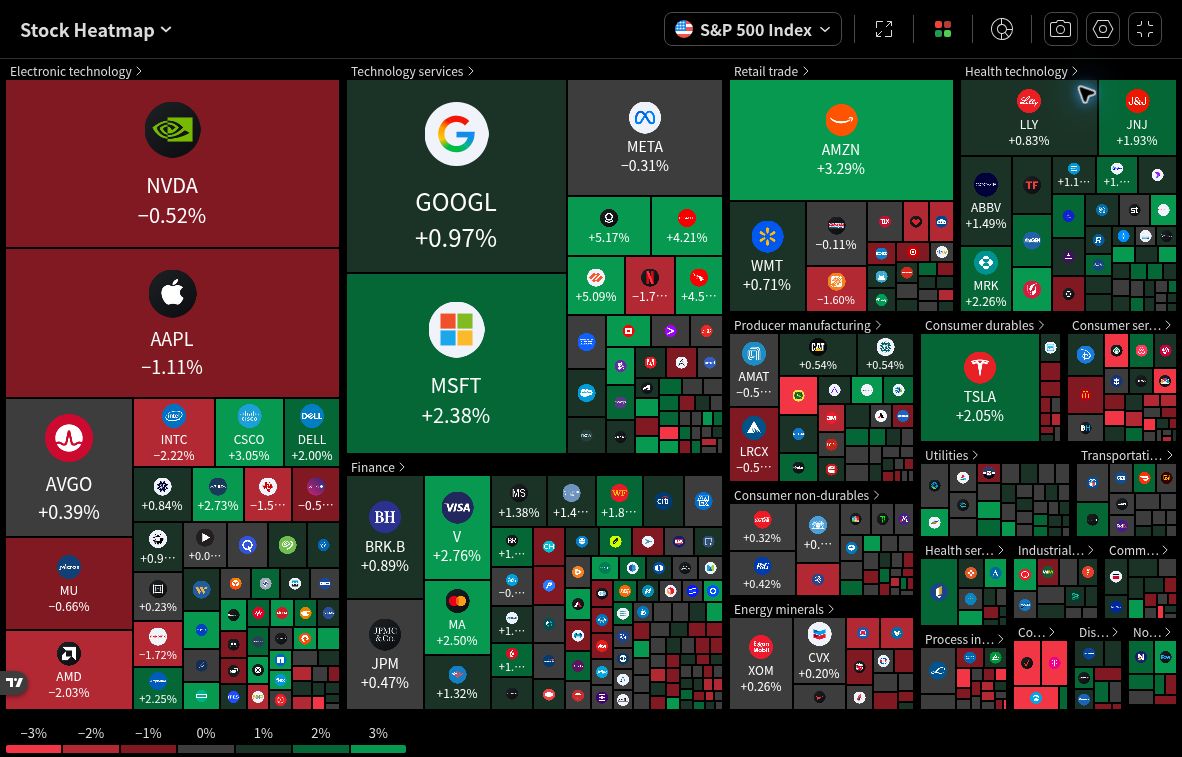
Swipe or scroll horizontally to inspect the controls. Open the full-size screenshot.
2 Read size and color separately
Size by determines a tile’s area. With Market cap selected, a larger tile represents a larger company by that measure. Switching to Volume emphasizes trading activity; Turnover weighs activity using price multiplied by volume. Always check the selected measurement period.
Color by determines what the color represents. In the classic daily-change view, green indicates a positive move, red a negative move, and gray a move close to zero. A stronger shade represents a larger move within the displayed legend ranges.
The color menu also offers longer performance periods and other fields, such as relative volume or volatility. A color representing trading activity needs a different interpretation from a color representing price change. TradingView’s size and color instructions explain these choices.
Write a plain description before interpreting the map: “This is the selected stock market, sized by market capitalization, colored by one-day price change, and grouped by sector.” A tile’s color does not establish business quality or fair value.
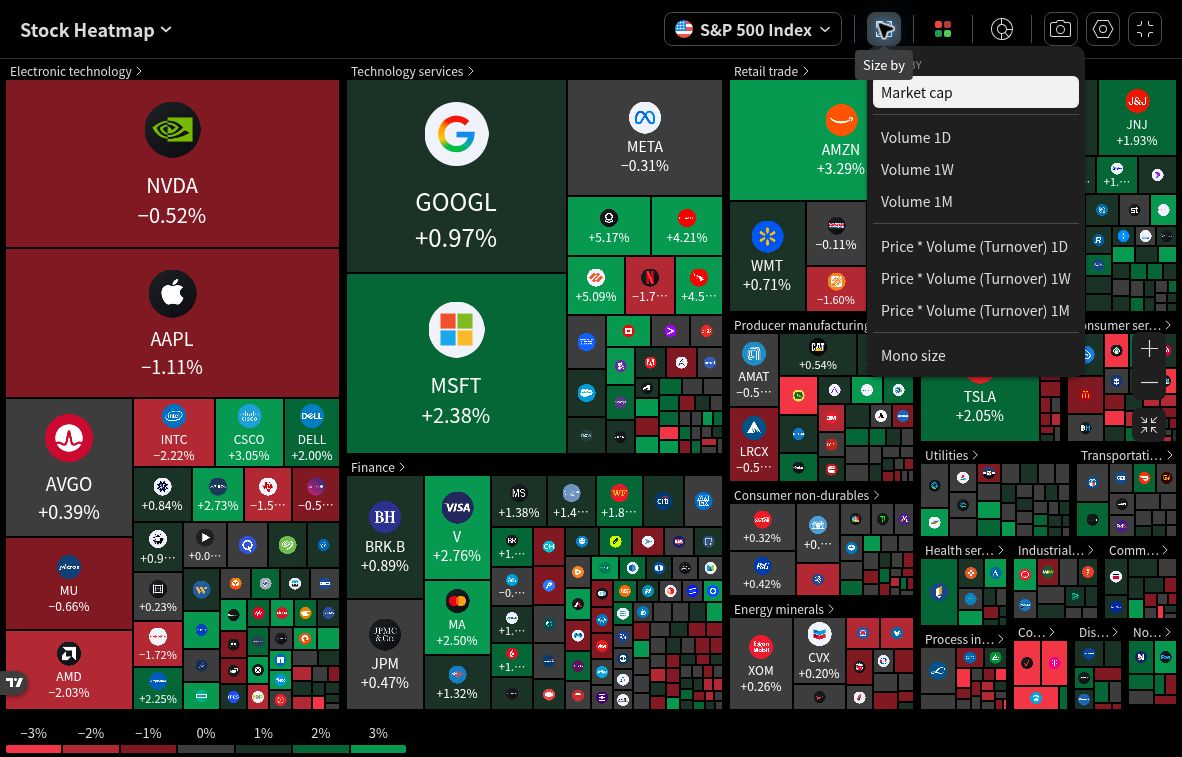
Swipe or scroll horizontally to inspect the controls. Open the full-size screenshot.
3 Check the legend whenever you change the view
TradingView calculates color ranges from the selected field and displayed data. Those ranges can change when the metric or filters change. Compare the numbers in the legend and tooltip rather than assuming that the same shade means the same percentage in two views.
Legend segments also act as filters. Clicking a segment hides tiles in that range; clicking it again restores them. A map with hidden ranges is an incomplete view of the selected market. Restore them before describing the whole market. See TradingView’s legend and range calculation guide.
If colors are difficult to distinguish, use the settings cogwheel to select the Color-blind or Monochrome palette. Read numeric values as well. TradingView documents these alternative color schemes.
4 Separate concentration from the number of rising stocks
With market-cap sizing, a large sector block reflects the combined capitalization of the displayed stocks in that sector. It does not state the sector’s investment return, the number of companies in it, or its weight in your own portfolio.
Hypothetical arithmetic example: assume a three-stock portfolio begins with weights of 80%, 10%, and 10%. The largest holding falls 2%, while each smaller holding rises 3%. Two of three stocks rise, yet the weighted portfolio change is −1%: −1.6 percentage points from the largest holding plus 0.3 from each smaller holding. These invented figures illustrate weighting; they are not TradingView data or an actual investment result.
Use this idea to ask whether a move appears concentrated. Avoid calculating an exact index return from tile areas. For example, the S&P 500 uses float-adjusted market-cap weighting, while TradingView’s market-cap definition uses company-level outstanding shares and can include other share classes. The visual size measure can therefore differ from an index’s official weights.
For a globally equal-area comparison, choose Mono size, then No group. This gives each tile equal area in the captured interface, making smaller companies easier to inspect. TradingView’s display guide explains this mode. Compare the equal-area view with the market-cap view, using the same market and color period. Equal areas make individual symbols easier to compare; they do not reproduce an equal-weight index’s return calculation.
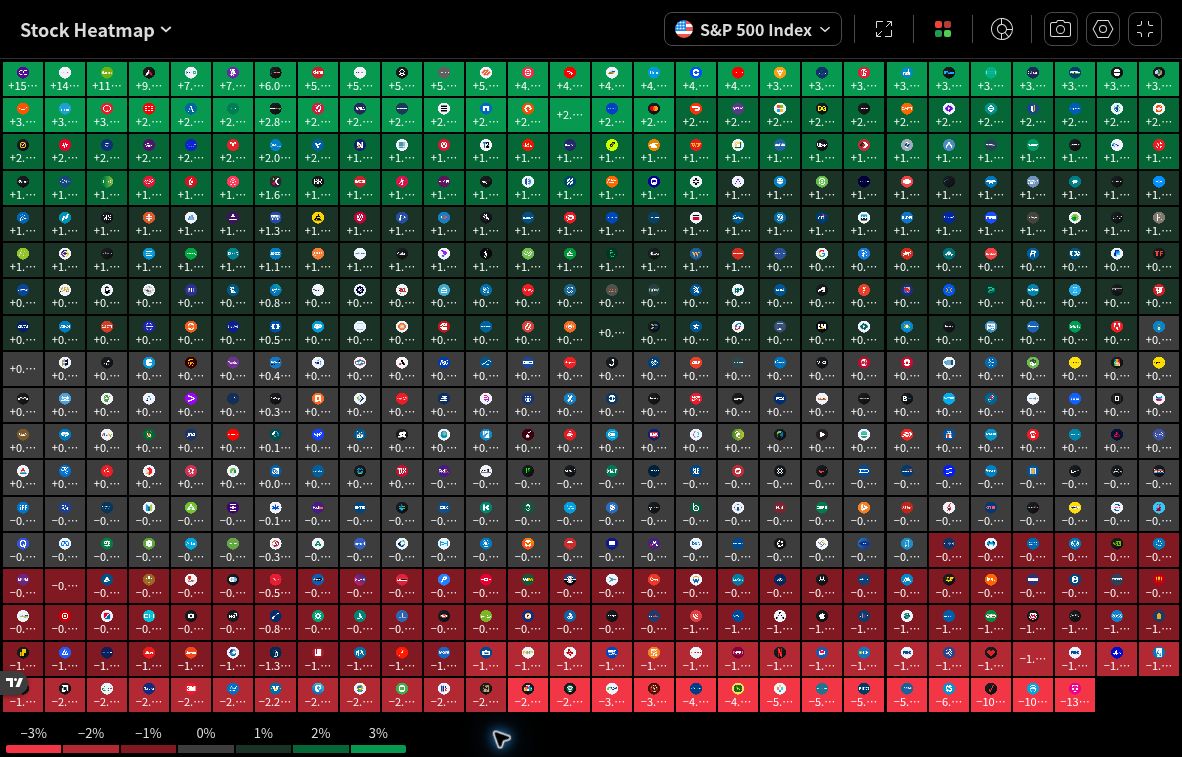
Swipe or scroll horizontally to inspect the controls. Open the full-size screenshot.
5 Use the Screener when you need a custom selection
The standalone heatmap is convenient for a country or index overview. For a more specific selection, open the Stock Screener, choose your market, and apply the filters you need. Then select Heatmap view near the view controls.
TradingView now offers table, chart, and heatmap views in its Stock, ETF, and Crypto Coins Screeners. Switching views preserves your filters and result set. A heatmap of a filtered screen describes those results, so record the filters before treating it as a market-wide observation.
Save your own screen if you want to reopen the same selection and heatmap settings. The official screener heatmap announcement explains these features.
What changes in the ETF Heatmap
In the ETF Heatmap, each tile represents a fund. The default size field is AUM, or assets under management. A larger AUM tile indicates more assets managed by that fund, rather than a larger position in your portfolio. ETFs can be grouped by asset class.
Compare funds with similar investment mandates and read the chosen color field. TradingView offers ETF fields beyond ordinary price change, including NAV total return. Check the fund provider’s holdings, fees, and prospectus before choosing a fund. A heatmap of funds does not provide a complete view of overlapping underlying holdings.
Check data timing before interpreting a move
TradingView’s standalone heatmap help page says the map refreshes automatically every minute and describes a 15-minute symbol-data delay without a real-time market-data subscription. A refreshing screen can still display delayed quotes. Check the relevant exchange feed and your data access.
The heatmap inside a Screener uses the Screener’s refresh settings, which include manual refresh and automatic intervals. Treat that setting separately from the exchange feed’s delay. A paid platform plan does not automatically settle every market-data entitlement; review the current feature and market-data information before paying.
A short practice exercise
Record the market, observation time, size field, color field and period, grouping, and any filters. Then answer:
- Are the largest tiles moving together or in different directions?
- Does the equal-area view suggest that the move extends to smaller companies?
- Which company deserves a closer look, and what specific question will you investigate?
Open that company’s reports and look for evidence that answers the question. Our 10-K checklist helps with the business, financial statements, and risks. Use the relative performance guide when comparing a security with a suitable benchmark over the same period.
Found a company worth investigating? Follow our fundamental-analysis guide to check its revenue, cash flow, debt, and original reports.
Browse all TradingView guides for the next practical lesson.
Try the available controls first. If a limit interrupts your research, check the specific feature in the current plan comparison before subscribing.
I may earn a commission if you purchase through the following affiliate link.
Open TradingView for stock-heatmap practice
Educational information only. This article is not individualized investment advice or a recommendation to buy or sell any security. Investing involves risk, including loss of capital.